How to Get Your Business Listed on Google
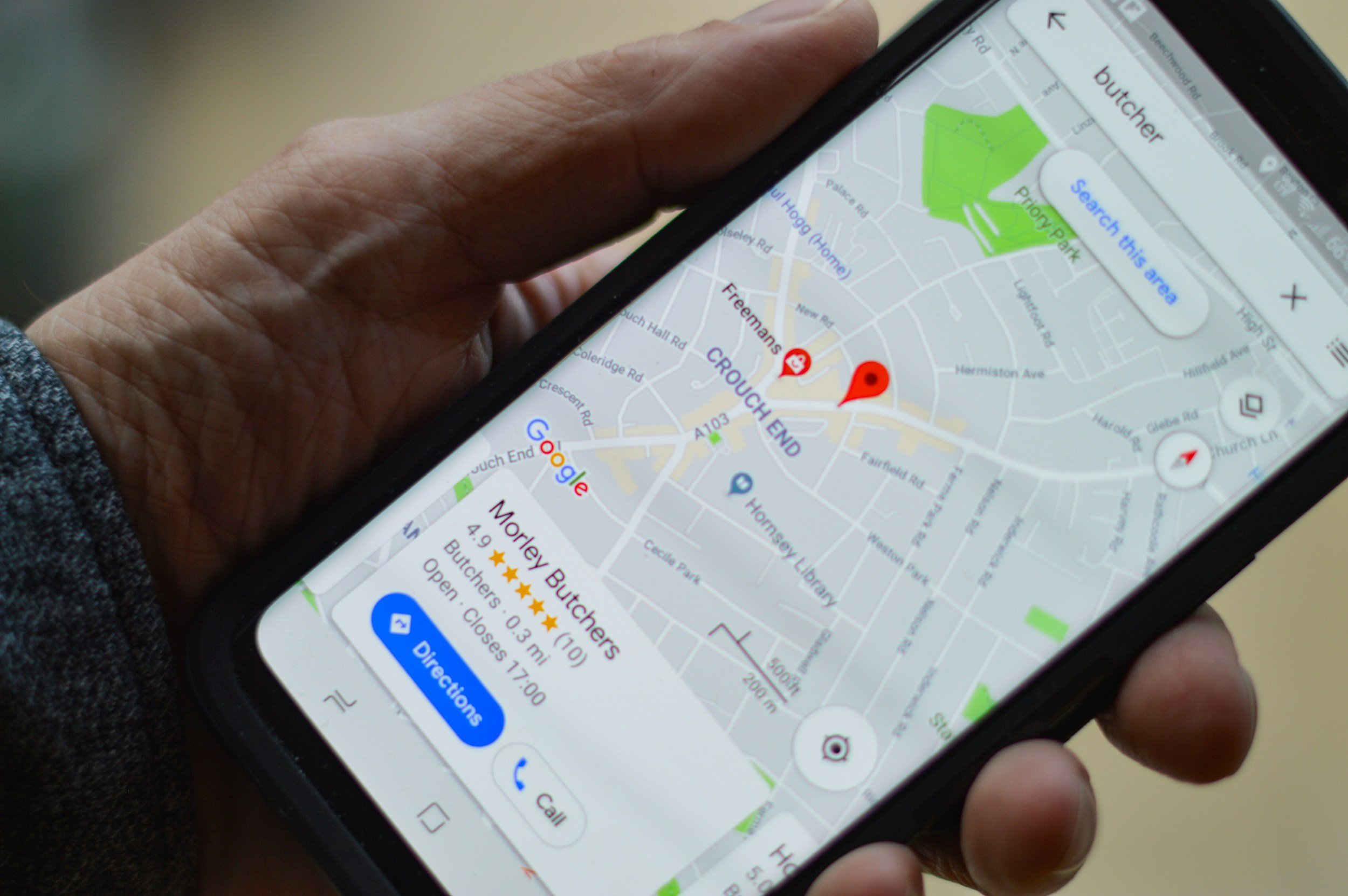
If someone Googles your business and nothing shows up… we’ve got a problem.
You know that moment when you hear about a business and immediately look them up online?
Yeah. Your future customers do that too.
People trust businesses they can find. If someone searches for your business and nothing shows up, many people simply move on to one that does.
That little Google listing with reviews, photos, hours, and directions? That’s called your Google Business Profile — and if you’re a small business owner, it’s one of the most important free marketing tools available to you.
The good news? Setting it up is way less intimidating than it sounds.
So grab your coffee, open a browser tab, and let’s get your business officially on the map.
Step 1: Go to Google Business Profile
Head to:
https://www.google.com/business/
Click “Manage Now.”
You’ll need to sign into a Google account. Ideally, this should be:
a business Gmail account, or
an email you’ll always have access to long-term.
(Trust me — future-you does not want your business tied to your old high school email address.)
Step 2: Type in Your Business Name
Google will ask for your business name.
If your business already exists, it may appear as a suggested listing.
If it doesn’t, click:
“Create a business with this name.”
Try to keep your business name consistent everywhere online:
Website
Facebook
Yelp
Apple Maps
Instagram
Business cards
Consistency helps with both trust and SEO.
Step 3: Choose Your Business Category
This part matters more than most people realize.
Your category tells Google what your business actually does.
Examples:
Concrete Contractor
Bakery
Hair Salon
Business Consultant
Photographer
Choose the most accurate primary category possible. You can always add secondary categories later.
Step 4: Add Your Service Area or Address
Google will ask whether customers come to you or whether you travel to them.
If you:
work from home,
travel to clients,
or don’t want your address public…
You can hide your home address and instead choose a service area (like your city or county).
This is especially important for contractors, service providers, and home-based businesses.
Step 5: Add Contact Info
Now add:
your phone number
website
business hours
If you don’t have a website yet, that’s okay.
You can still create your Google listing first and add your website later.
Your Google listing gets people to find you.
Your website helps convert them into customers.
Step 6: Verify Your Business
This is the step where Google confirms you’re a real human running a real business.
Verification methods may include:
text message
phone call
email
video verification
postcard verification
Google changes these methods often, so don’t panic if your screen looks slightly different than someone else’s tutorial online.
For service businesses especially, Google may ask you to record:
your workspace,
tools,
vehicle branding,
or proof you operate the business.
It sounds scary. It’s usually not.
Step 7: Optimize Your Profile (This Is the Important Part)
Okay friend — technically your listing is live now.
But this next section is what separates a forgotten listing from one that actually brings in leads.
Add Photos
Businesses with photos tend to perform better because they feel more trustworthy and active.
Add:
logo
team photos
completed projects
workspace photos
product photos
before & afters
Bonus tip:
Rename your image files before uploading them.
Instead of:
IMG_4827.jpg
Try:
tooele-utah-concrete-patio.jpg
Tiny detail. Big SEO energy.
Step 8: Ask for Reviews Early
Reviews are digital word-of-mouth.
Even just 5–10 solid reviews can make a huge difference when you’re first starting out.
A few tips:
Ask right after a positive interaction
Make it easy with a direct link
Don’t overcomplicate the ask
Simple works:
“Hey! If you enjoyed working with me, I’d really appreciate a quick Google review.”
Step 9: Keep It Active
Google likes active businesses.
A few easy ways to keep your listing fresh:
upload new photos regularly
update hours seasonally
respond to reviews
post updates occasionally
Think of your Google profile like a mini social media platform for your business.
Final Thoughts
You do not need a giant company, fancy branding, or years of experience to show up professionally online.
There are tons of free tools available such as Google, Yelp and Apple Maps that even a new business can leverage.
When someone searches for the service you offer, your business deserves to be found too!
And honestly? There’s something really exciting about seeing your business officially appear on Google for the first time. It makes the dream feel real.
One step at a time, friend.
Sources & Further Reading
Google Business Profile Help Center: https://support.google.com/business/
Google Business Profile: https://www.google.com/business/
Small Tweak, Big Reach: Boost Your SEO & AIO Visibility in Just 10 Minutes
Frequently Asked Questions
-
A Google Business Profile is a free listing that allows customers to find your business on Google Search and Google Maps.
-
Yes. Google Business Profiles are free to create and manage.
-
No, but having a website helps customers learn more about your business.
-
You will want to list your home address for verification purposes on your business profile but when it comes to the customers view - you can hide your address and use a service area instead.
-
Verification time varies depending on Google's verification method.